
Pipedrive QuickBooks Integration for Smarter Invoicing
Just think of this: you just closed a mammoth deal of 50,000 dollars in Pipedrive, and your sales group is cheering.
However, when reality sets in, you must create an invoice, manage accounting, match payments, and keep both the finance and sales teams on the same track.
This implies that it will take hours of manual input, a high possibility of human error, and sluggish cash flow. For most burgeoning companies, this is a day-to-day challenge.
A 2025 SMB Tech Efficiency Report indicates that businesses are wasting as much as 25 percent of their time on manual reconciliations time that should be spent on growth and strategy.
Enter the Pipedrive QuickBooks integration: a simple, automated bridge between your sales and finance systems.
This integration links Pipedrive, one of the most popular CRM tools for sales pipeline management, and QuickBooks, the accounting software of choice for small and mid-sized enterprises.
The result? More invoices faster, fewer errors, instant visibility of cash flow, and happy teams.
By the end of this blog, you’ll know exactly how to streamline your business processes through Pipedrive QuickBooks integration and why now is the time to make this move.
What Is Pipedrive QuickBooks Integration?

The Pipedrive QuickBooks integration is a connection between your CRM (Pipedrive) and accounting system (QuickBooks) that automates the flow of data between the two platforms.
Rather than creating and sending invoices or managing payments manually or across several applications, this integration helps you automatically see your deal data in Pipedrive immediately as invoices, payments, or estimates in QuickBooks.
QuickBooks Key functions include:
-
Automatic Creation of Invoices
An invoice is created automatically in QuickBooks when a deal in Pipedrive is marked as “Won.”
-
Two-Way Sync
Any changes of payment status in QuickBooks are reflected in Pipedrive, allowing the sales reps to know when the client has made a payment.
-
Single Customer Information
The contact and product/service information is synchronized in both systems eliminating redundancy on data entry.
This is not a luxury it is a prerequisite of scaling businesses that require financial precision and operational velocity.
Why Is Pipedrive QuickBooks Integration Important?

Efficiency, speed, and accuracy are the keys to the success of modern business. However, in most companies, the sales and finance department is a huge choke point.
Salespeople make sales in Pipedrive, after which they have to manually generate invoices in QuickBooks, which is tedious and prone to errors and consumes valuable time.
This is where the Pipedrive QuickBooks integration becomes a game-changer. It is not a convenience but an operational requirement of companies looking to grow.
This is why thousands of businesses are going to adopt it:
1. Time Savings: Do not Make Your Staff Do Manual Work
Your most important asset is time. When a deal is made by your sales force, an invoice must be prepared in QuickBooks.
It is at least 15 minutes per invoice, even more when you need to check customer information, payment conditions, and taxes two times.
- Example: If your business generates 300 invoices per month, that’s
15 minutes × 300 invoices = 4,500 minutes → 75 hours → nearly 2 full workweeks!
And that is the time that your finance department could have used on strategic analysis rather than doing the same thing over and over.
Through integration, the whole process of invoicing becomes immediate and automatic, as soon as a deal in Pipedrive is set to be won.
2. Error Reduction: Precision That Puts a Shield on Your Reputation
Keying in data is a silent killer of profits. Whenever an individual re-enters the deal information back into QuickBooks there is a possibility of typing errors, amount errors or omissions of data.
Some research studies on the accounting industry reveal that it costs businesses an average of 200 dollars to correct every error on data entry, sometimes more when the error causes a delay in payments or non-compliance of regulations.
The Pipedrive QuickBooks integration reduces these errors by up to 68% because the data flows automatically between platforms without human intervention.
This means:
- Less customer conflicts on invoice mistakes.
- Avoidance of lost revenues due to inaccurate billing.
- More confidence in your financial accounts.
3. Better Cash Flow: Faster Payments
Any business lives off of cash flow. However, in the event that your invoicing is delayed due to the necessity to create invoices manually, the payment comes in more slowly.
Firms that use automation of their CRM-to-accounting process report that they are paid 20 percent faster.
Why Better Cash Flow? Because:
- When deals are closed, invoices are sent out instantly.
- Automated reminders on payment can be made.
- Finance has real-time awareness of outstanding payments; hence, follow-ups are proactive and not reactive.
Faster invoicing = faster payments = healthier cash flow.
4. Improved alignment: finance and sales at the same page.
How many times have you heard:
- Has the invoice already been sent?
- “What was the date of payment of the client?”
- Is this much right?
Teams do not communicate when systems fail to communicate. The combination establishes the visions in real-time:
- Sales reps can check whether the payment has been made in Pipedrive without the need to involve finance.
- Finance can be certain that all the deals with the status of Won are already invoiced appropriately in QuickBooks.
This removes interdepartmental communication barriers and conflict and keeps everyone on track with growth as opposed to firefighting.
The Fact That Seals the Deal
The report by SMB Efficiency in 2024 suggests that companies with automated CRM-accounting integrations,
such as Pipedrive + QuickBooks, get an average ROI of 5x in the first year.
Book a free integration audit call with our experts at CRM Squirrel for your business growth!
How Does Pipedrive QuickBooks Integration Work?
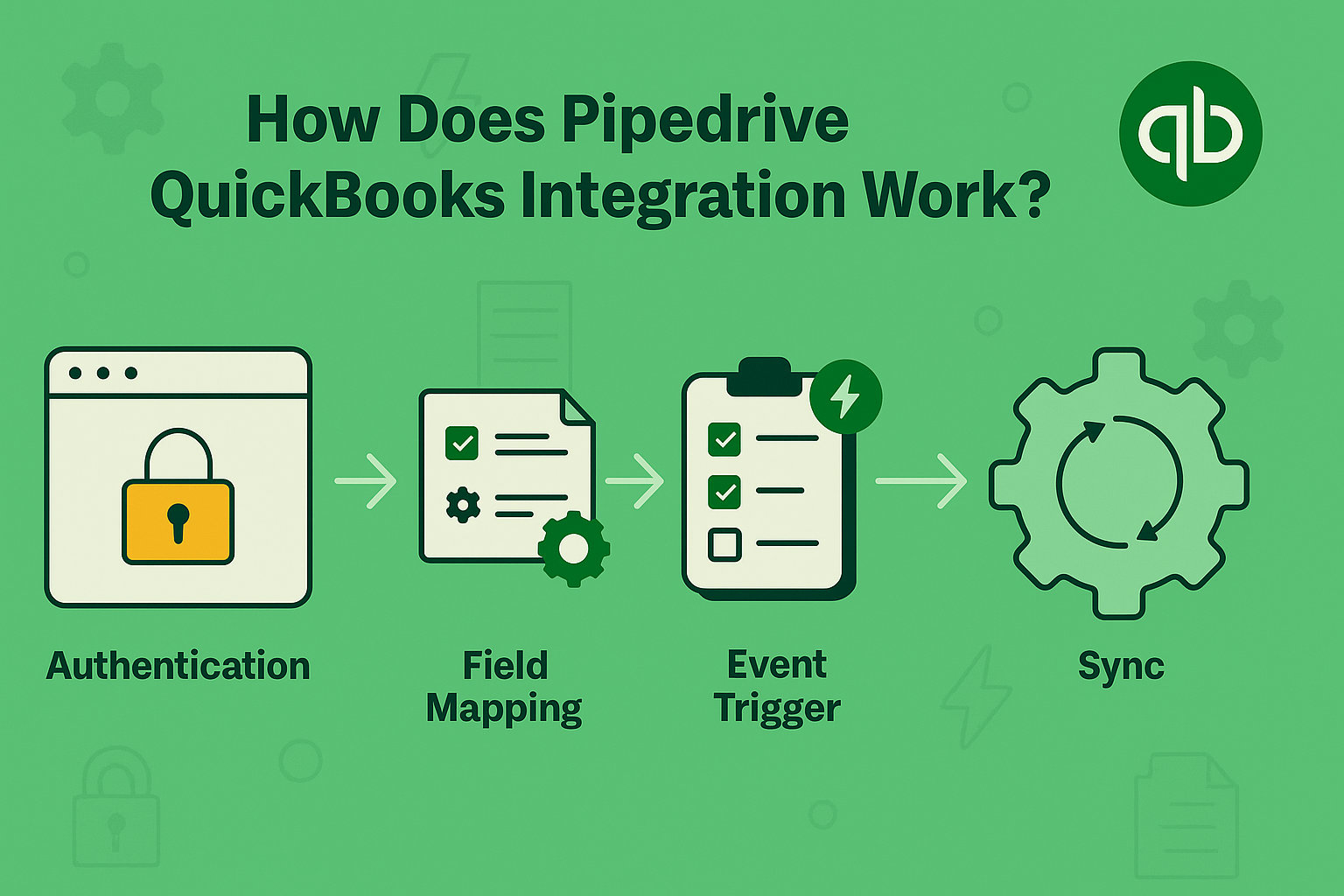
The integration is performed by field mapping and event triggering:
-
Authentication
Securely connect the two accounts through OAuth 2.0.
-
Field Mapping
Map Pipedrive fields (deal name, amount, due date) to QuickBooks invoice fields.
-
Event Trigger
As a Pipedrive deal is changed to a won state, an invoice is created through QuickBooks.
-
Sync
Payment statuses are updated into Pipedrive.
Custom workflows, Pipedrive Marketplace offers native integration to many businesses or custom integrations through automation tools such as Zapier and Integromat.
Step-by-Step Guide: How to Set Up Pipedrive QuickBooks Integration
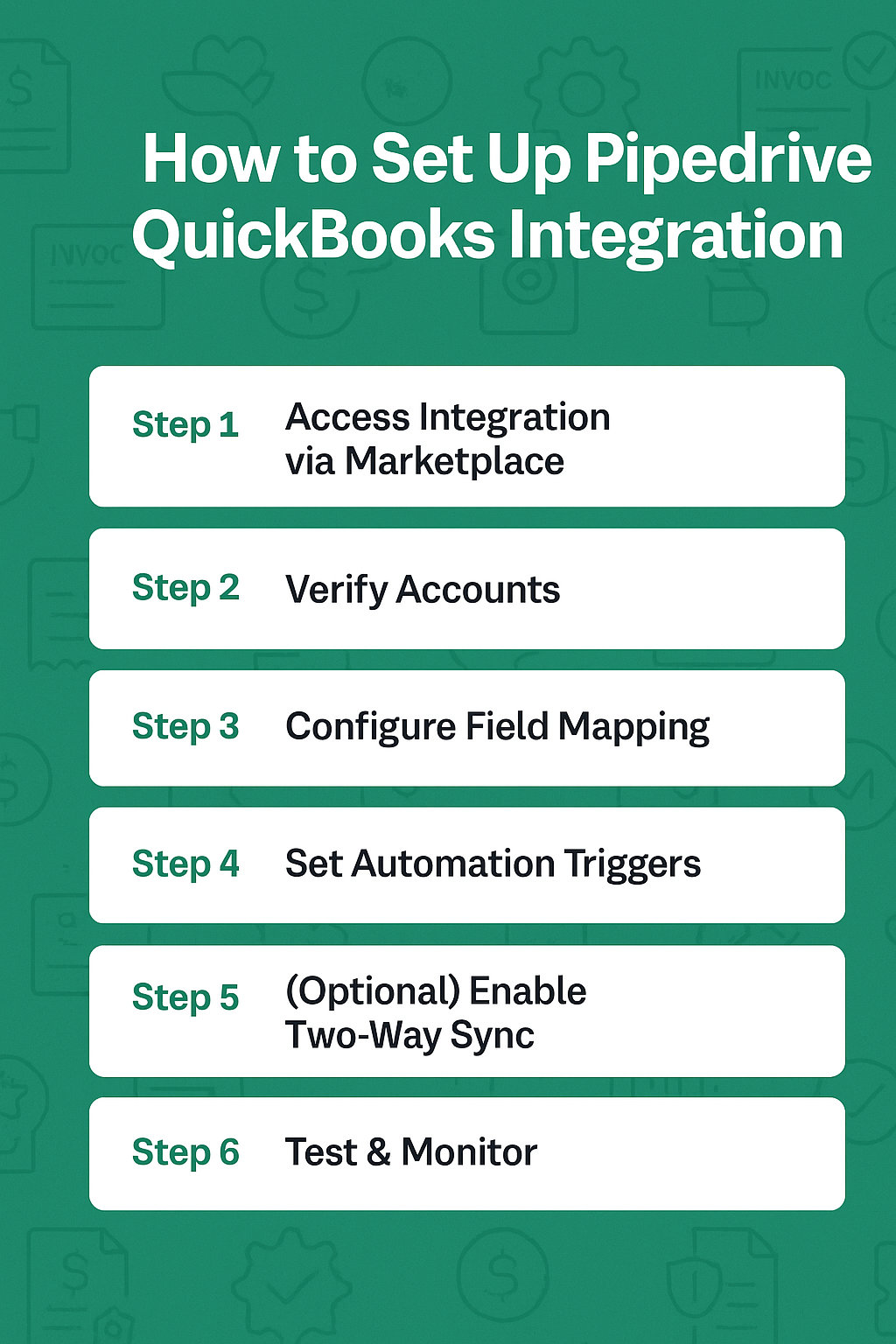
Setting up the Pipedrive QuickBooks integration doesn’t require advanced technical skills, but it does require attention to detail.
These are some steps to follow in order to easily set up your CRM to run in perfect harmony with your accounting.
Step 1: Get to the Integration through the Pipedrive Marketplace
-
Go to the Marketplace
Visit Pipedrive Marketplace and find QuickBooks Online Integration.
-
Choose the App
Search for the official QuickBooks integration app (by Pipedrive or authorized third-party users).
-
Click on the Install Now
This will initiate the process of connection.
-
Pro Tip for integration
Never install unofficial or low-rated integration apps as they might cause security problems and incompatibility.
Step 2: Verify Accounts
-
Open QuickBooks
It will ask you to log in into your QuickBooks account (QuickBooks Online version is supported).
-
Sign in to Pipedrive
Ensure that you have confirmed your Pipedrive CRM account.
-
Provide Access
Authorize the integration to exchange data among platforms.
-
Security Note
This is done through OAuth 2.0 and hence your credentials are safe and encrypted.
Step 3: Set up Field Mapping
With field mapping, the correct data will be transferred between Pipedrive and QuickBooks without mistakes.
-
Key Mappings to set
- Deal Title -> Invoice Title
- Deal Value 9 Invoice Amount
- Name of the Organization -> Name of the Customer
- Expected Close Date or Invoice due date
- Products/Services or Line Items
-
Custom Fields
Map unique fields as well, such as Tax ID or Discount.
Step 4: Automation Triggers
The magic comes in automation. Establish schedules as to when data sync must take place.
-
The General Trigger
When a deal in Pipedrive is won → creating an invoice in QuickBooks.
-
Optional Triggers
- Upon payment of invoice → Upload deal status in Pipedrive.
- When payment is late → Send a follow-up Pipedrive activity.
-
Pro Tip for automation triggers
Use rules as needed, such as Only sync invoices above 500.
Step 5: (Optional) Enable Two-Way Sync
The two-way sync is available in some integrations; that is:
- Updates to payment in QuickBooks appear in Pipedrive.
- Variations in QuickBooks invoices modify related deals.
-
Best Practice to enable Two-Way Sync
In case you enable two-way sync, make sure you test it to prevent the possibility of duplicate data.
Step 6: Verifying the Integration
-
Prior to becoming live
Enter some test data into Pipedrive in the form of a test deal.
-
Mark it as a Won and see whether
- A correct invoice is printed in QuickBooks.
- Backflow of payment status information (when activated).
- Check logs on any errors
-
Pro Tip to verity the Integration
Try out initial testing using a sandbox environment (where possible).
Step 7: Live and Monitor
After testing is successful:
- Allow integration to all deals.
- Learn new workflows with your sales and finance teams.
- The first week, use monitor sync logs to make everything work well.
-
Ongoing Maintenance
- Ensure the API updates of Pipedrive and QuickBooks.
- Quarterly review field mappings to keep pace with changes in business processes.
What If You Use Zapier Instead of Native Integration?
If your use case requires advanced customization:
- Go to Zapier and create a “Zap.”
- Trigger: “New Won Deal in Pipedrive.”
- Action: “Create Invoice in QuickBooks.”
- Add filters for conditions (e.g., invoice only for certain deal stages).
- Test and deploy.
Best For: Businesses with complex workflows or multiple systems beyond Pipedrive and QuickBooks.
Pipedrive QuickBooks Integration vs Zapier/Integromat
| Feature | Native Integration | Zapier/Integromat |
| Two-Way Sync | ✅ | Limited/custom |
| Setup Time | Fast | Longer |
| Error Handling | Built-in | Manual monitoring |
| Official Support | Yes | No |
If you need deep customization, Zapier is great. But for most businesses, the native integration is more reliable.
Common Issues & Troubleshooting Tips for Pipedrive QuickBooks Integration
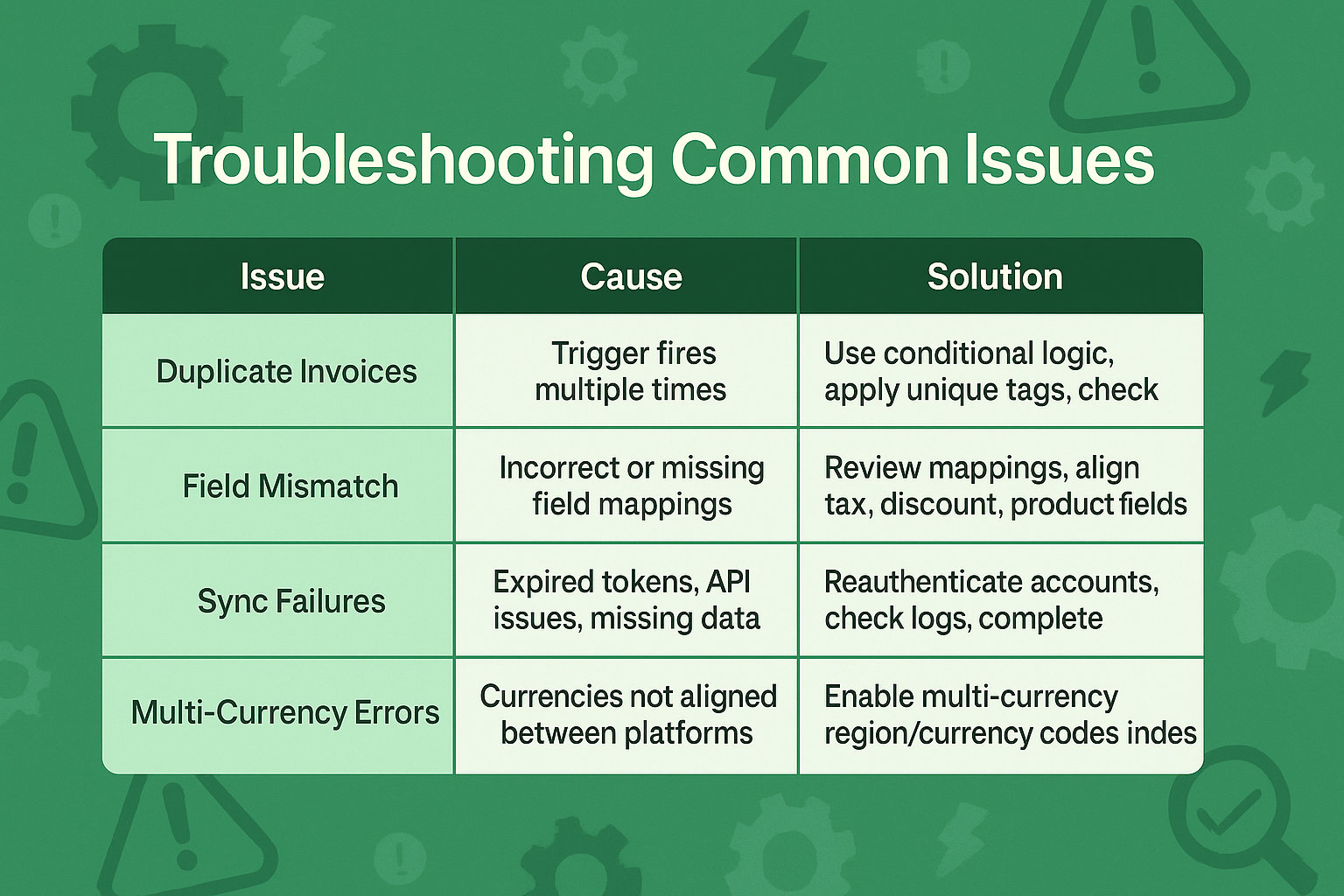
Things sometimes go wrong, even when a well-configured integration is in place. Automation proves to be a real time-saver in reducing the number of manual operations, but it should be noted that it is advisable to observe your setup the first few weeks upon activation.
Here are the most common challenges users face with the Pipedrive QuickBooks integration, along with clear solutions to help you fix them fast.
| Issue | Cause | Solution |
| Duplicate Invoices | The trigger fires multiple times | Use conditional logic, apply unique tags, and check for existing invoices first |
| Field Mismatch | Incorrect or missing field mappings | Review mappings; align tax, discount, and product fields |
| Sync Failures | Expired tokens, API issues, and missing data | Reauthenticate accounts, check logs, and complete required fields |
| Multi-Currency Errors | Currencies not aligned between platforms | Enable multi-currency and match region/currency codes in both systems |
Best Practices to an Easy Pipedrive QuickBooks Integration
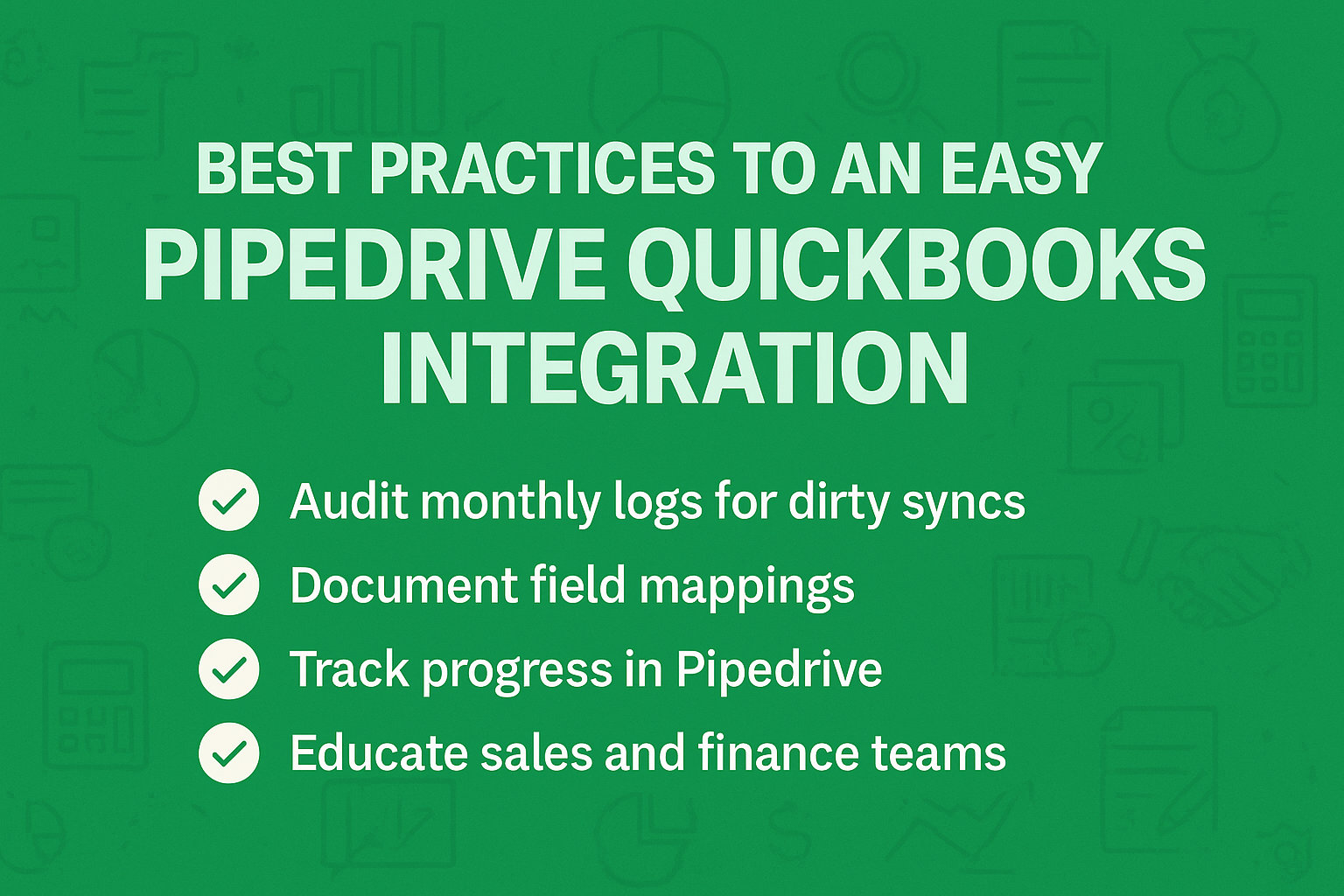
- Audit monthly: Review the logs to make sure there are no dirty or erroneous syncs.
- Write down your field mappings: Have a collective sheet with sales and finance.
- Track progress (e.g., change the tag of a deal in Pipedrive to “Invoice Sent”).
- Educate your team: Make both sales and finance aware of what goes on when a deal is won.
You’ve seen how the Pipedrive QuickBooks integration can save time, reduce errors, speed up cash flow, and align your teams. Companies that apply the integration realize ROI in less than 90 days.
Are you ready to automate manual work and scale smarter?
Today is the day you can start your Pipedrive QuickBooks Integration!
FAQ about Pipedrive QuickBooks Integration

-
What is the frequency of data sync?
Every few minutes, in real-time, depending on the configuration.
-
Is it possible to align products and services?
Yes, the majority of the integrations support product line-item mapping.
-
Is it safe?
Yes, OAuth 2.0 with TLS encryption and GDPR compliance.
-
Does it have multi-currency and tax regulations?
Yes, provided that they are established in Pipedrive and QuickBooks.
-
Is it possible to disconnect in case of necessity?
Yes, you may turn off or delete the integration at any time.